TEAM XTECHNOLOGY 2011

TEAM XTECHNOLOGY 2011
By fendyz@xtechnology

Xtechnology Member 2011. InCorporated.

XTECHNOLOGY® NETWORK CORPORATION

MEMBER / CREW. 2011.LTD


All copyright reserved. Xtechnology®Network.Corporation. LTD
Our TradeMark, Logo, & any information is covered.
add by admin. Fendyz@Xtechnology
for more information, email to xtechnologies@gmx.com

Salam AidilFitri Daripada Warga XTECHNOLOGY®

"SaLam AidilFitri Maaf Zahir & Batin "
Khas daripada warga *@Team Xtechnology@*
http://xtechnologies.blogspot.com/
& Kumpulan Cybertrone Computer Centre® KGR, PERLIS.
http://cybertrone-center.blogspot.com/
( Semoga Syawal Kali Ini Memberi Sejuta Kenangan Manis )
Insya Allah...


Web Server


Our Web Server Station will coming up next time.
The utility and IT Base system still in process at the last part in structure.

Xtechnology Network Corporation understand that was a good reason for company. Certain part in the structure may useful and other part may not useful. Xtechnology Network Corporation will come back with the new design and new structure of Web Server System next year ( 2011 ).

This coming up will take a time. Surely in the content, costing about to create and build Web Server System increase from 12% to 15% after december 2010 and closing the structure at the end of March 2011.

by 

Fendy (FiQ) - Fendyz@xtechnology
( MANAGER OF XTECHNOLOGY NETWORK CORPORATION )

Paul Allen sues Apple, Google, Facebook, others over Web patents


A firm owned by billionaire Microsoft co-founder Paul Allen today sued Apple, Facebook, Google, YouTube, and seven other companies, charging them with infringing patents filed more than a decade ago.
Google and Facebook blasted the lawsuit as "unfortunate" and "without merit."
The complaint, filed Friday morning in a Seattle federal court, named AOL, Apple, eBay, Facebook, Google, Netflix, Office Depot, OfficeMax, Staples, Yahoo and Google's YouTube.
AOL, Apple, Google and Yahoo were each charged with four claims of patent infringement, while Facebook was hit with one. The other eight companies were charged with two claims each.
The suit does not name Microsoft , which Allen co-founded with Bill Gates in 1975 but left in 1983 after being diagnosed with Hodgkin's disease. Microsoft did not reply to a request asking whether it had licensed some or all of the applicable patents from Allen's firm.
Allen's lawsuit claimed that the 11 companies violated patents developed by Internal Research, a Silicon Valley research lab he funded in 1992, but which shut its doors in 2000. David Liddle, who worked at the Xerox's influential Palo Alto Research Center ( Xerox PARC) in the 1970s, was Interval's CEO.
Those patents were later transferred to Interval Licensing, a company owned by Allen.
The two patents that make up the bulk of the claims are 6,263,507 , " Browser for Use in Navigating a Body of Information, With Particular Application to Browsing Information Represented By Audiovisual Data," and 6,757,682 , "Alerting Users to Items of Current Interest." Allen's lawsuit alleges that all but Facebook violated the '507 patent, and all 11 companies infringed the '682 patent.
Interval filed applications for the four patents between March 1996 and September 2000, and was awarded the patents between March 2000 and September 2004.
The '507 patent refers to a possible application in a "news browser" that could be used to "review news stories acquired during one day from several television news programs, as well as from text news sources." The '682 patent, meanwhile, describes technology for alerting users of Web content related to what they're currently viewing, or of others' activities that might interest them.
The '682 patent is the only one that Allen's company claimed was violated by Facebook, the popular social networking site.
The remaining two patents spell out an "attention manager" that would flash advertisements, stock quotes and other information in front of a user.


By IT_News

Join X - CLUB Today!

Get More Benefits when become our 
X - Club Member!

X - CLUB for ALL.

Presented by
Fendyz@xtechnology Network.Server


HOW???
Just email your full name, phone number, address, and ic number to us.
Here! xtechnologies@gmx.com


Updated : 19 August '10

Installing a dual-boot with Windows without partitioning

Installing a dual-boot with Windows without partitioning


Introduction to Wubi

Many Windows users who are interested in trying Ubuntu are afraid of repartitioning their drives to set up a dual-boot (a dual-boot allows you to choose at boot-up whether you would like to use one operating system or another). Yes, there are other options, like running the live CD or installing Ubuntu as a virtual machine inside Windows. But it's also nice to know there is still another option—Wubi is a program that comes on the Ubuntu Desktop CD (otherwise known as the live CD) that allows you to install Ubuntu as a dual-boot by installing it as a huge file inside of Windows and then modifying the Windows boot loader to add an entry for Ubuntu.
The nice thing about this approach from a Windows-user standpoint is that there is no risk of accidentally deleting your entire drive, you don't have to know anything about partitions, and you can easily remove Ubuntu from the dual-boot if you want to go back to a strictly Windows-only system.

Installing Wubi

In your normal Windows session (make sure your user has administrative rights first), insert the Ubuntu Desktop CD.
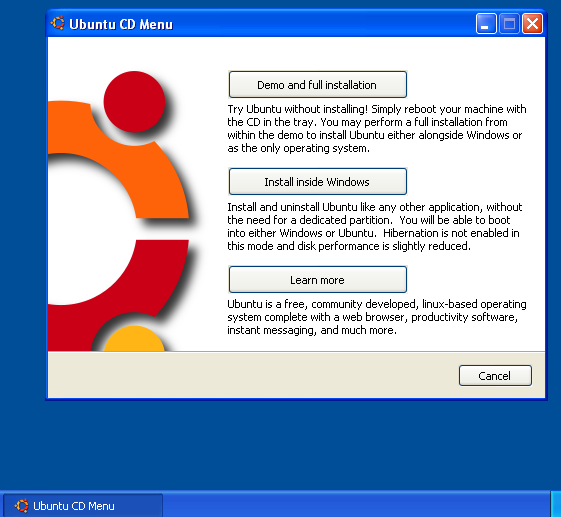
This dialogue should pop up automatically. If not, you may be able to find an autorun file on the CD through Windows Explorer.
Choose to Install inside Windows.
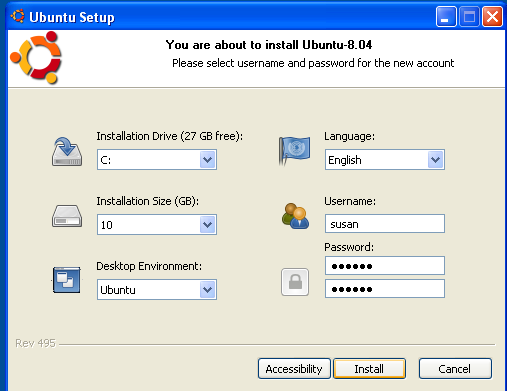
Answer the questions and click Install.


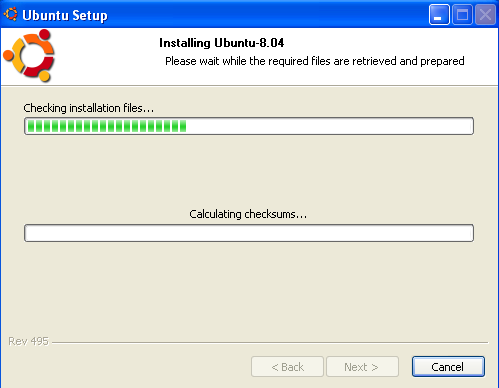
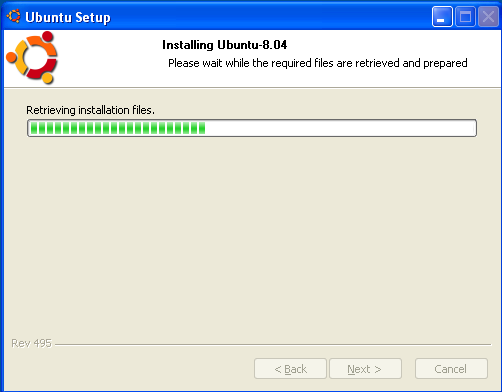
Wait for all the processes to finish. This can take a while (15-30 minutes).
When the dual-boot is set up, Windows will automatically eject the Ubuntu CD, and you'll be prompted to reboot.
When you reboot, you'll see this boot menu:
Please select the operating system to start: Microsoft Windows XP Professional
Ubuntu
Use the up and down arrow keys to move the highlight to your choice. Press ENTER to choose.
For troubleshooting and advanced startup options for Windows, press F8.
That's pretty self-explanatory. I believe Windows will still be the default boot, so if you want to boot into Ubuntu, you'll have to press the Down arrow quickly.
The first time you boot into Ubuntu, you may notice the partitioner startup and then a progress bar for Ubuntu installing itself. This will take a while (maybe another 10 minutes), but it will involve no user interaction. After that process is done, the computer should automatically reboot.

Change default boot order

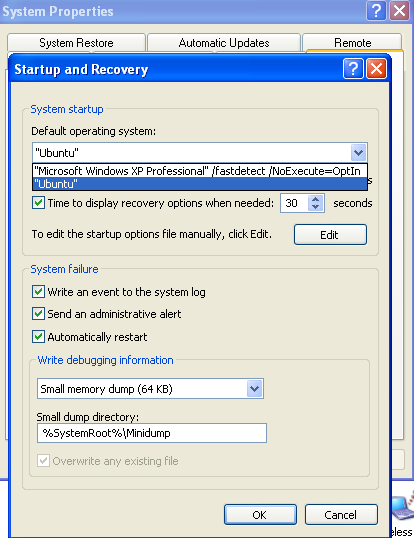
Wubi sets up the dual-boot so that the default boot choice is Windows. If you want to change the default to be Ubuntu instead, go to the Control Panel in Windows.
Double-click System and select Advanced and then Settings under Startup and Recovery.
In the Default operating system drop-down menu, select Ubuntu instead of Windows. Then click OK when you're done.

Remove Wubi

If you don't like Ubuntu, you can uninstall it just like any other Windows program by going to Add or Remove Programs in the Control Panel and select Change/Remove for Ubuntu.

 Xtechnology Network Corp.

xtechnologies@gmx.com

How To Install uBuntu????

Installing Ubuntu

Now that you have the Desktop CD, you'll need to reboot your computer to use Ubuntu.
Your computer's BIOS must be set to boot from CD first; otherwise, Windows will just load up again. To get into the BIOS settings, you usually have to press one of these keys during boot-up: Escape, F1, F2, F12, or Delete. Usually your computer will tell you which key to use.
Once your BIOS is configured to boot from CD first, if you have Ubuntu in the drive, you should see this screen. Select your language.
If you have at least 512 MB of RAM, you may want to select Try Ubuntu without any change to your computer, as it will allow you to do other things (check your email, browse the web) while you're installing Ubuntu.
If you have only 256 MB or 384 MB of RAM, you should select Install Ubuntu. This will give you the same installation screens you see below, but you won't have the rest of the Ubuntu live session running as well.
If you have less than 256 MB of RAM, you should use the Alternate CD to install Ubuntu, or do a barebones installation.
 
After that, you should see a progress bar as the CD prepares to launch the installer.
Click the Install on the desktop to begin the installation.
 
 
Answer the questions as best you can. Most of them should be self-explanatory.
By default, the installer will give you the option to install Ubuntu side by side with whatever operating system is currently on your computer. You can choose that if you want to set up a dual-boot, but as I stated before, the safest dual-boot is probably with Wubi, unless you know what you're doing (in which case you shouldn't be looking at this guide).
For simplicity's sake, you should select Use the entire disk. Or, if you don't want to erase your entire drive, click Quit and then boot back into Windows and set up a dual-boot using Wubi.
If you are concerned about ever having to reinstall Ubuntu, but you want to make sure your user settings and files are preserved, check out these details on creating a separate /home partition during this part of the installation.
 
More straightforward questions.


Wait for the installation to finish. This part generally takes 10 to 30 minutes, depending on the speed of your computer.
 
After the installation is done, you have the option to keep using your live session of Ubuntu or to reboot and start using the installed version of Ubuntu.
After you reboot, don't be alarmed if you see some text boot messages. Just wait for Ubuntu to load...
 
And then after you log in, your Ubuntu will be ready for you to use! 


XTECHNOLOGY NETWORK CORPORATION
xtechnologies@gmx.com 

Promosi Perkhidmatan Membina Dan Mengurus Blog!


Xtechnologies.Blogspot.Com
HUBUNGI SEKARANG!
EMAIL: xtechnologies@gmx.com / cybertrone_center@yahoo.com
TEL: +60134678967 / +60177854267 
HUBUNGI SEKARANG!

PERKHIDMATAN DITAWARKAN :
  1. Membina Blog dan akaun baru bagi pelanggan blog
  2. Menyusun langkah-langkah membina blog
  3. Membina iklan dan promosi 
  4. Mengemaskini data  dan maklumat  yang dikehendaki pelanggan
  5. Memberi sumber nasihat dan pendapat
  6. Meningkatkan halaman pelanggan agar lebih berdaya saing dan berkualiti

Active networking

Active Networking 


Active networking is a communication pattern that allows packets flowing through a telecommunications network to dynamically modify the operation of the network.

How it works

Active network architecture is composed of execution environments (similar to a unix shell that can execute active packets), a node operating system capable of supporting one or more execution environments. It also consists of active hardware, capable of routing or switching as well as executing code within active packets. This differs from the traditional network architecture which seeks robustness and stability by attempting to remove complexity and the ability to change its fundamental operation from underlying network components. Network processors are one means of implementing active networking concepts. Active networks have also been implemented as overlay networks.

What does it offer?

Active networking allows the possibility of highly tailored and rapid "real-time" changes to the underlying network operation. This enables such ideas as sending code along with packets of information allowing the data to change its form (code) to match the channel characteristics. The smallest program that can generate a sequence of data can be found in the definition of Kolmogorov Complexity. The use of real-time genetic algorithms within the network to compose network services is also enabled by active networking.

Fundamental Challenges

Active network research addresses the nature of how best to incorporate extremely dynamic capability within networks.


In order to do this, active network research must address the problem of optimally allocating computation versus communication within communication networks[2]. A similar problem related to the compression of code as a measure of complexity is addressed via algorithmic information theory.

Nanoscale Active Networks

As the limit in reduction of transistor size is reached with current technology, active networking concepts are being explored as a more efficient means accomplishing computation and communication

Email : xtechnologies@gmx.com

xtechnologies.blogspot.com 

Wireless access point [ Content And Structure ]

Wireless access point...


In computer networking, a wireless access point (WAP) is a device that allows wireless communication devices to connect to a wireless network using Wi-Fi, Bluetooth or related standards. The WAP usually connects to a wired network, and can relay data between the wireless devices (such as computers or printers) and wired devices on the network.

In industrial wireless networking, the design is rugged with a metal cover, a Din-Rail mount, and a wider temperature range during operations, high humidity and exposure to water, dust, and oil. Wireless security includes: WPA-PSK, WPA2, IEEE 802.1x/RADIUS, WDS, WEP, TKIP, and CCMP (AES) encryption.

Unlike home consumer models, industrial wireless access points can also be used as a bridge, router, or a client.

Introduction

Prior to wireless networks, setting up a computer network in a business, home, or school often required running many cables through walls and ceilings in order to deliver network access to all of the network-enabled devices in the building. With the advent of the Wireless Access Point, network users are now able to add devices that access the network with few or no cables. Today's WAPs are built to support a standard for sending and receiving data using radio frequencies rather than cabling. Those standards, and the frequencies they use are defined by the IEEE. Most WAPs use IEEE 802.11 standards.

Common WAP Applications

A typical corporate use involves attaching several WAPs to a wired network and then providing wireless access to the office LAN. The wireless access points are managed by a WLAN Controller which handles automatic adjustments to RF power, channels, authentication, and security. Further, controllers can be combined to form a wireless mobility group to allow inter-controller roaming. The controllers can be part of a mobility domain to allow clients access throughout large or regional office locations. This saves the clients time and administrators overhead because it can automatically re-associate or re-authenticate. Further, multiple controllers and all of the hundreds of access points attached to those controllers can be managed by a software called Cisco Wireless Control System Which handles the same functions as a controller yet adds the bonus features of mapping user or RFID locations to an uploaded map, upgrading controllers and access point firmware, and rogue detection/handling. In this instance, the WAP functions as a gateway for clients to access the wired network.

A Hot Spot is a common public application of WAPs, where wireless clients can connect to the Internet without regard for the particular networks to which they have attached for the moment. The concept has become common in large cities, where a combination of coffeehouses, libraries, as well as privately owned open access points, allow clients to stay more or less continuously connected to the Internet, while moving around. A collection of connected Hot Spots can be referred to as a lily-pad network.

The majority of WAPs are used in Home wireless networks.[citation needed] Home networks generally have only one WAP to connect all the computers in a home. Most are wireless routers, meaning converged devices that include the WAP, a router, and, often, an ethernet switch. Many also include a broadband modem. In places where most homes have their own WAP within range of the neighbors' WAP, it's possible for technically savvy people to turn off their encryption and set up a wireless community network, creating an intra-city communication network without the need of wired networks.

A WAP may also act as the network's arbitrator, negotiating when each nearby client device can transmit. However, the vast majority of currently installed IEEE 802.11 networks do not implement this, using a distributed pseudo-random algorithm called CSMA/CA instead.

Wireless Access Point vs. Ad-Hoc Network

Some people confuse Wireless Access Points with Wireless Ad-Hoc networks. An Ad-Hoc network uses a connection between two or more devices without using an access point: the devices communicate directly. An Ad-Hoc network is used in situations such as a quick data exchange or a multiplayer LAN game because it is easy to set up and does not require an access point. Due to its peer-to-peer layout, Ad-Hoc connections are similar to Bluetooth ones and are generally not recommended for a permanent installation.

Internet access via Ad-Hoc networks, using features like Windows' Internet Connection Sharing, may work well with a small number of devices that are close to each other, but Ad-Hoc networks don't scale well. Internet traffic will converge to the nodes with direct internet connection, potentially congesting these nodes. For internet-enabled nodes, Access Points have a clear advantage, being designed to handle this load.

Limitations

One IEEE 802.11 WAP can typically communicate with 30 client systems located within a radius of 100 m.[citation needed] However, the actual range of communication can vary significantly, depending on such variables as indoor or outdoor placement, height above ground, nearby obstructions, other electronic devices that might actively interfere with the signal by broadcasting on the same frequency, type of antenna, the current weather, operating radio frequency, and the power output of devices. Network designers can extend the range of WAPs through the use of repeaters and reflectors, which can bounce or amplify radio signals that ordinarily would go un-received. In experimental conditions, wireless networking has operated over distances of several kilometers.[citation needed]

Most jurisdictions have only a limited number of frequencies legally available for use by wireless networks. Usually, adjacent WAPs will use different frequencies (Channels) to communicate with their clients in order to avoid interference between the two nearby systems. Wireless devices can "listen" for data traffic on other frequencies, and can rapidly switch from one frequency to another to achieve better reception. However, the limited number of frequencies becomes problematic in crowded downtown areas with tall buildings using multiple WAPs. In such an environment, signal overlap becomes an issue causing interference, which results in signal dropage and data errors.

Wireless networking lags behind wired networking in terms of increasing bandwidth and throughput. While (as of 2004) typical wireless devices for the consumer market can reach speeds of 11 Mbit/s (megabits per second) (IEEE 802.11b) or 54 Mbit/s (IEEE 802.11a, IEEE 802.11g), wired hardware of similar cost reaches 1000 Mbit/s (Gigabit Ethernet). One impediment to increasing the speed of wireless communications comes from Wi-Fi's use of a shared communications medium, so a WAP is only able to use somewhat less than half the actual over-the-air rate for data throughput. Thus a typical 54 MBit/s wireless connection actually carries TCP/IP data at 20 to 25 Mbit/s. Users of legacy wired networks expect faster speeds, and people using wireless connections keenly want to see the wireless networks catch up.

As of 2007 a new standard for wireless, 802.11n is awaiting final certification from IEEE. This new standard operates at speeds up to 540 Mbit/s and at longer distances (~50 m) than 802.11g. Use of legacy wired networks (especially in consumer applications) is expected[by whom?] to decline sharply as the common 100 Mbit/s speed is surpassed and users no longer need to worry about running wires to attain high bandwidth.[citation needed]

By the year 2008 draft 802.11n based access points and client devices have already taken a fair share of the market place but with inherent problems integrating products from different vendors.

Security
Main article: Wireless LAN Security

Wireless access has special security considerations. Many wired networks base the security on physical access control, trusting all the users on the local network, but if wireless access points are connected to the network, anyone on the street or in the neighboring office could connect.

The most common solution is wireless traffic encryption. Modern access points come with built-in encryption. The first generation encryption scheme WEP proved easy to crack; the second and third generation schemes, WPA and WPA2, are considered secure if a strong enough password or passphrase is used.

Some WAPs support hotspot style authentication using RADIUS and other authentication servers.

Computer network

DEFINITION.... CONTENT AND STRUCTURE


Computer Network Area


A computer network is a group of computers that are connected to each other for the purpose of communication. Networks may be classified according to a wide variety of characteristics. This article provides a general overview of some types and categories and also presents the basic components of a network.

Introduction

A computer network allows computers to communicate with many other computers and to share resources and information. The Advanced Research Projects Agency (ARPA) funded the design of the "Advanced Research Projects Agency Network" (ARPANET) for the United States Department of Defense. It was the first operational computer network in the world.[1] Development of the network began in 1969, based on designs developed during the 1960s. For a history see ARPANET, the first network.
[edit] Network classification

The following list presents categories used for classifying networks.

Connection method

Computer networks can be classified according to the hardware and software technology that is used to interconnect the individual devices in the network, such as Optical fiber, Ethernet, Wireless LAN, HomePNA, Power line communication or G.hn. Ethernet uses physical wiring to connect devices. Frequently deployed devices include hubs, switches, bridges and/or routers. Wireless LAN technology is designed to connect devices without wiring. These devices use radio waves or infrared signals as a transmission medium.

ITU-T G.hn technology uses existing home wiring (coaxial cable, phone lines and power lines) to create a high-speed (up to 1 Gigabit/s) local area network.

Wired Technologies

Twisted-Pair Wire - This is the most widely used medium for telecommunication. Twisted-pair wires are ordinary telephone wires which consist of two insulated copper wires twisted into pairs and are used for both voice and data transmission. The use of two wires twisted together helps to reduce crosstalk and electromagnetic induction. The transmission speed ranges from 2 million bits per second to 100 million bits per second.

Coaxial Cable – These cables are widely used for cable television systems, office buildings, and other worksites for local area networks. The cables consist of copper or aluminum wire wrapped with insulating layer typically of a flexible material with a high dielectric constant, all of which are surrounded by a conductive layer. The layers of insulation help minimize interference and distortion. Transmission speed range from 200 million to more than 500 million bits per second.

Fiber Optics – These cables consist of one or more thin filaments of glass fiber wrapped in a protective layer. It transmits light which can travel over long distance and higher bandwidths. Fiber-optic cables are not affected by electromagnetic radiation. Transmission speed could go up to as high as trillions of bits per second. The speed of fiber optics is hundreds of times faster than coaxial cables and thousands of times faster than twisted-pair wire.

Wireless Technologies

Terrestrial Microwave – Terrestrial microwaves use Earth-based transmitter and receiver. The equipment look similar to satellite dishes. Terrestrial microwaves use low-gigahertz range, which limits all communications to line-of-sight. Path between relay stations spaced approx. 30 miles apart. Microwave antennas are usually placed on top of buildings, towers, hills, and mountain peaks.

Communications Satellites – The satellites use microwave radio as their telecommunications medium which are not deflected by the Earth's atmosphere. The satellites are stationed in space, typically 22,000 miles above the equator. These Earth-orbiting systems are capable of receiving and relaying voice, data, and TV signals.

Cellular and PCS Systems – Use several radio communications technologies. The systems are divided to different geographic area. Each area has low-power transmitter or radio relay antenna device to relay calls from one area to the next area.

Wireless LANs – Wireless local area network use a high-frequency radio technology similar to digital cellular and a low-frequency radio technology. Wireless LANS use spread spectrum technology to enable communication between multiple devices in a limited area. Example of open-standard wireless radio-wave technology is IEEE 802.11b.

Bluetooth – A short range wireless technology. Operate at approx. 1Mbps with range from 10 to 100 meters. Bluetooth is an open wireless protocol for data exchange over short distances.

The Wireless Web – The wireless web refers to the use of the World Wide Web through equipments like cellular phones, pagers,PDAs, and other portable communications devices. The wireless web service offers anytime/anywhere connection.

Scale

Networks are often classified as Local Area Network (LAN), Wide Area Network (WAN), Metropolitan Area Network (MAN), Personal Area Network (PAN), Virtual Private Network (VPN), Campus Area Network (CAN), Storage Area Network (SAN), etc. depending on their scale, scope and purpose. Usage, trust levels and access rights often differ between these types of network - for example, LANs tend to be designed for internal use by an organization's internal systems and employees in individual physical locations (such as a building), while WANs may connect physically separate parts of an organization to each other and may include connections to third parties.

Functional relationship (network architecture)

Computer networks may be classified according to the functional relationships which exist among the elements of the network, e.g., Active Networking, Client-server and Peer-to-peer (workgroup) architecture.

Network topology

Computer networks may be classified according to the network topology upon which the network is based, such as bus network, star network, ring network, mesh network, star-bus network, tree or hierarchical topology network. Network topology signifies the way in which devices in the network see their logical relations to one another. The use of the term "logical" here is significant. That is, network topology is independent of the "physical" layout of the network. Even if networked computers are physically placed in a linear arrangement, if they are connected via a hub, the network has a Star topology, rather than a bus topology. In this regard the visual and operational characteristics of a network are distinct; the logical network topology is not necessarily the same as the physical layout. Networks may be classified based on the method of data used to convey the data, these include digital and analog networks.

Types of networks

Below is a list of the most common types of computer networks in order of scale.


Personal area network

A personal area network (PAN) is a computer network used for communication among computer devices close to one person. Some examples of devices that are used in a PAN are personal computers, printers, fax machines, telephones, PDAs, scanners, and even video game consoles. Such a PAN may include wired and wireless connections between devices. The reach of a PAN is typically at least about 20-30 feet (approximately 6-9 meters), but this is expected to increase with technology improvements.


Local area network

A local Area Network (LAN) is a computer network covering a small physical area, like a home, office, or small group of buildings, such as a school, or an airport. Current wired LANs are most likely to be based on Ethernet technology, although new standards like ITU-T G.hn also provide a way to create a wired LAN using existing home wires (coaxial cables, phone lines and power lines)[2].

For example, a library may have a wired or wireless LAN for users to interconnect local devices (e.g., printers and servers) and to connect to the internet. On a wired LAN, PCs in the library are typically connected by category 5 (Cat5) cable, running the IEEE 802.3 protocol through a system of interconnected devices and eventually connect to the Internet. The cables to the servers are typically on Cat 5e enhanced cable, which will support IEEE 802.3 at 1 Gbit/s. A wireless LAN may exist using a different IEEE protocol, 802.11b, 802.11g or possibly 802.11n. The staff computers (bright green in the figure) can get to the color printer, checkout records, and the academic network and the Internet. All user computers can get to the Internet and the card catalog. Each workgroup can get to its local printer. Note that the printers are not accessible from outside their workgroup.
Typical library network, in a branching tree topology and controlled access to resources

All interconnected devices must understand the network layer (layer 3), because they are handling multiple subnets (the different colors). Those inside the library, which have only 10/100 Mbit/s Ethernet connections to the user device and a Gigabit Ethernet connection to the central router, could be called "layer 3 switches" because they only have Ethernet interfaces and must understand IP. It would be more correct to call them access routers, where the router at the top is a distribution router that connects to the Internet and academic networks' customer access routers.

The defining characteristics of LANs, in contrast to WANs (Wide Area Networks), include their higher data transfer rates, smaller geographic range, and lack of a need for leased telecommunication lines. Current Ethernet or other IEEE 802.3 LAN technologies operate at speeds up to 10 Gbit/s. This is the data transfer rate. IEEE has projects investigating the standardization of 40 and 100 Gbit/s.[3]


Campus area network

A campus area network (CAN) is a computer network made up of an interconnection of local area networks (LANs) within a limited geographical area. It can be considered one form of a metropolitan area network, specific to an academic setting.

In the case of a university campus-based campus area network, the network is likely to link a variety of campus buildings including; academic departments, the university library and student residence halls. A campus area network is larger than a local area network but smaller than a wide area network (WAN) (in some cases).

The main aim of a campus area network is to facilitate students accessing internet and university resources. This is a network that connects two or more LANs but that is limited to a specific and contiguous geographical area such as a college campus, industrial complex, office building, or a military base. A CAN may be considered a type of MAN (metropolitan area network), but is generally limited to a smaller area than a typical MAN. This term is most often used to discuss the implementation of networks for a contiguous area. This should not be confused with a Controller Area Network. A LAN connects network devices over a relatively short distance. A networked office building, school, or home usually contains a single LAN, though sometimes one building will contain a few small LANs (perhaps one per room), and occasionally a LAN will span a group of nearby buildings.


Metropolitan area network

A metropolitan area network (MAN) is a network that connects two or more local area networks or campus area networks together but does not extend beyond the boundaries of the immediate town/city. Routers, switches and hubs are connected to create a metropolitan area network.

Wide area network

A wide area network (WAN) is a computer network that covers a broad area (i.e. any network whose communications links cross metropolitan, regional, or national boundaries [1]). Less formally, a WAN is a network that uses routers and public communications links. Contrast with personal area networks (PANs), local area networks (LANs), campus area networks (CANs), or metropolitan area networks (MANs), which are usually limited to a room, building, campus or specific metropolitan area (e.g., a city) respectively. The largest and most well-known example of a WAN is the Internet. A WAN is a data communications network that covers a relatively broad geographic area (i.e. one city to another and one country to another country) and that often uses transmission facilities provided by common carriers, such as telephone companies. WAN technologies generally function at the lower three layers of the OSI reference model: the physical layer, the data link layer, and the network layer.


Global area network

A global area networks (GAN) (see also IEEE 802.20) specification is in development by several groups, and there is no common definition. In general, however, a GAN is a model for supporting mobile communications across an arbitrary number of wireless LANs, satellite coverage areas, etc. The key challenge in mobile communications is "handing off" the user communications from one local coverage area to the next. In IEEE Project 802, this involves a succession of terrestrial WIRELESS local area networks (WLAN).[4]

Virtual private network

A virtual private network (VPN) is a computer network in which some of the links between nodes are carried by open connections or virtual circuits in some larger network (e.g., the Internet) instead of by physical wires. The data link layer protocols of the virtual network are said to be tunneled through the larger network when this is the case. One common application is secure communications through the public Internet, but a VPN need not have explicit security features, such as authentication or content encryption. VPNs, for example, can be used to separate the traffic of different user communities over an underlying network with strong security features.

A VPN may have best-effort performance, or may have a defined service level agreement (SLA) between the VPN customer and the VPN service provider. Generally, a VPN has a topology more complex than point-to-point.

A VPN allows computer users to appear to be editing from an IP address location other than the one which connects the actual computer to the Internet.

Internetwork

An Internetwork is the connection of two or more distinct computer networks or network segments via a common routing technology. The result is called an internetwork (often shortened to internet). Two or more networks or network segments connect using devices that operate at layer 3 (the 'network' layer) of the OSI Basic Reference Model, such as a router. Any interconnection among or between public, private, commercial, industrial, or governmental networks may also be defined as an internetwork.

In modern practice, interconnected networks use the Internet Protocol. There are at least three variants of internetworks, depending on who administers and who participates in them:

  • * Intranet
  • * Extranet
  • * Internet

Intranets and extranets may or may not have connections to the Internet. If connected to the Internet, the intranet or extranet is normally protected from being accessed from the Internet without proper authorization. The Internet is not considered to be a part of the intranet or extranet, although it may serve as a portal for access to portions of an extranet.

Intranet

An intranet is a set of networks, using the Internet Protocol and IP-based tools such as web browsers and file transfer applications, that is under the control of a single administrative entity. That administrative entity closes the intranet to all but specific, authorized users. Most commonly, an intranet is the internal network of an organization. A large intranet will typically have at least one web server to provide users with organizational information.

Extranet

An extranet is a network or internetwork that is limited in scope to a single organization or entity and also has limited connections to the networks of one or more other usually, but not necessarily, trusted organizations or entities (e.g., a company's customers may be given access to some part of its intranet creating in this way an extranet, while at the same time the customers may not be considered 'trusted' from a security standpoint). Technically, an extranet may also be categorized as a CAN, MAN, WAN, or other type of network, although, by definition, an extranet cannot consist of a single LAN; it must have at least one connection with an external network.

Internet

The Internet consists of a worldwide interconnection of governmental, academic, public, and private networks based upon the networking technologies of the Internet Protocol Suite. It is the successor of the Advanced Research Projects Agency Network (ARPANET) developed by DARPA of the U.S. Department of Defense. The Internet is also the communications backbone underlying the World Wide Web (WWW). The 'Internet' is most commonly spelled with a capital 'I' as a proper noun, for historical reasons and to distinguish it from other generic internetworks.

Participants in the Internet use a diverse array of methods of several hundred documented, and often standardized, protocols compatible with the Internet Protocol Suite and an addressing system (IP Addresses) administered by the Internet Assigned Numbers Authority and address registries. Service providers and large enterprises exchange information about the reachability of their address spaces through the Border Gateway Protocol (BGP), forming a redundant worldwide mesh of transmission paths.


Basic hardware components

All networks are made up of basic hardware building blocks to interconnect network nodes, such as Network Interface Cards (NICs), Bridges, Hubs, Switches, and Routers. In addition, some method of connecting these building blocks is required, usually in the form of galvanic cable (most commonly Category 5 cable). Less common are microwave links (as in IEEE 802.12) or optical cable ("optical fiber"). An Ethernet card may also be required.


Network interface cards

A network card, network adapter, or NIC (network interface card) is a piece of computer hardware designed to allow computers to communicate over a computer network. It provides physical access to a networking medium and often provides a low-level addressing system through the use of MAC addresses.

Repeaters

A repeater is an electronic device that receives a signal and retransmits it at a higher power level, or to the other side of an obstruction, so that the signal can cover longer distances without degradation. In most twisted pair Ethernet configurations, repeaters are required for cable which runs longer than 100 meters.

Hubs

A network hub contains multiple ports. When a packet arrives at one port, it is copied unmodified to all ports of the hub for transmission. The destination address in the frame is not changed to a broadcast address.[5]

Bridges

A network bridge connects multiple network segments at the data link layer (layer 2) of the OSI model. Bridges do not promiscuously copy traffic to all ports, as hubs do, but learn which MAC addresses are reachable through specific ports. Once the bridge associates a port and an address, it will send traffic for that address only to that port. Bridges do send broadcasts to all ports except the one on which the broadcast was received.

Bridges learn the association of ports and addresses by examining the source address of frames that it sees on various ports. Once a frame arrives through a port, its source address is stored and the bridge assumes that MAC address is associated with that port. The first time that a previously unknown destination address is seen, the bridge will forward the frame to all ports other than the one on which the frame arrived.

Bridges come in three basic types:

1. Local bridges: Directly connect local area networks (LANs)
2. Remote bridges: Can be used to create a wide area network (WAN) link between LANs. Remote bridges, where the connecting link is slower than the end networks, largely have been replaced with routers.
3. Wireless bridges: Can be used to join LANs or connect remote stations to LANs

Switches

A network switch is a device that forwards and filters OSI layer 2 datagrams (chunk of data communication) between ports (connected cables) based on the MAC addresses in the packets.[6] This is distinct from a hub in that it only forwards the packets to the ports involved in the communications rather than all ports connected. Strictly speaking, a switch is not capable of routing traffic based on IP address (OSI Layer 3) which is necessary for communicating between network segments or within a large or complex LAN. Some switches are capable of routing based on IP addresses but are still called switches as a marketing term. A switch normally has numerous ports, with the intention being that most or all of the network is connected directly to the switch, or another switch that is in turn connected to a switch.[7]

Switch is a marketing term that encompasses routers and bridges, as well as devices that may distribute traffic on load or by application content (e.g., a Web URL identifier). Switches may operate at one or more OSI model layers, including physical, data link, network, or transport (i.e., end-to-end). A device that operates simultaneously at more than one of these layers is called a multilayer switch.

Overemphasizing the ill-defined term "switch" often leads to confusion when first trying to understand networking. Many experienced network designers and operators recommend starting with the logic of devices dealing with only one protocol level, not all of which are covered by OSI. Multilayer device selection is an advanced topic that may lead to selecting particular implementations, but multilayer switching is simply not a real-world design concept.

Routers

A router is a networking device that forwards packets between networks using information in protocol headers and forwarding tables to determine the best next router for each packet. Routers work at the Network Layer (layer 3) of the OSI model and the Internet Layer of TCP/IP.

Email : xtechnologies@gmx.com

xtechnologies.blogspot.com  [ Xtechnology Network Server ]

WelcOMe 2010

Kaspersky Internet Security 2010 Pirated Edition ( Trial )

XTECHNOLOGY NETWORK CORPORATION


Second Backup Link :


Email Us request for the password :
xtechnologies@gmx.com

System Needed : Net framework 3.0 above (Latest!)
: Microsoft Visual Basic 2008 (Latest!) 

Latest News And Promotion!

Rank #1#2#3#4#5#6#7#8#9#10
Excellent score   Excellent
Very good score   Very Good
Good score   Good
Fair score   Fair
Poor score   Poor
BitDefender Antivirus Kaspersky Anti-Virus Webroot Antivirus ESET Nod32 F-Secure Anti-Virus AVG Anti-Virus McAfee VirusScan G DATA AntiVirus Norton AntiVirus Trend Micro
Reviewer Comments Read Review
Watch Video Review
Read Review
Watch Video Review
Read Review
Watch Video Review
Read Review
Watch Video Review
Read Review
Read Review
Read Review
Watch Video Review
Read Review
Watch Video Review
Read Review
Read Review
Lowest Price Buy BitDefender Antivirus 2010
$24.95
Buy Kaspersky Anti-Virus 2010
$35.95
Buy Webroot Antivirus 6
$39.95
Buy ESET Nod32 4
$39.99
Buy F-Secure Anti-Virus 2009
$39.99
Buy AVG Anti-Virus 8
$25.99
Buy McAfee VirusScan 2009
$39.99
Buy G DATA AntiVirus 2009
$29.95
Buy Norton AntiVirus 2009
$39.99
Buy Trend Micro AntiVirus with AntiSpyware 2009
$39.95
 
Overall Rating Excellent Excellent Excellent Excellent Excellent Excellent Excellent Excellent Excellent Excellent
Ratings
Ease of Use Excellent Excellent Excellent Very Good Excellent Excellent Excellent Excellent Excellent Excellent
Effectiveness Excellent Excellent Excellent Excellent Excellent Very Good Excellent Very Good Excellent Very Good
Updates Excellent Excellent Excellent Excellent Excellent Excellent Excellent Excellent Very Good Excellent
Feature Set Excellent Excellent Excellent Excellent Excellent Excellent Excellent Excellent Excellent Excellent
Ease of Installation Excellent Excellent Excellent Excellent Very Good Excellent Excellent Excellent Excellent Excellent
Help/Support Excellent Excellent Excellent Excellent Excellent Good Very Good Very Good Excellent Very Good
View Specifications Go! Go! Go! Go!   Go! Go! Go! Go! Go!
View Screenshots View BitDefender Antivirus screenshots View Kaspersky Anti-Virus screenshots View Webroot Antivirus screenshots View ESET Nod32 screenshots   View AVG Anti-Virus screenshots View McAfee VirusScan screenshots View G DATA AntiVirus screenshots View Norton AntiVirus screenshots View Trend Micro screenshots
Other Versions
Small Business/Volume Discounts Available BitDefender Small Business Anti-Virus for File Server           G DATA AntiVirus Business Symantec Endpoint Protection  
For Gamers BitDefender GameSafe               Norton 2009 Gaming Edition  
Features
VB100% Certified Check Mark Check Mark Check Mark Check Mark Check Mark Check Mark Check Mark Check Mark Check Mark Check Mark
ICSA Certified Check Mark Check Mark Check Mark Check Mark Check Mark Check Mark Check Mark Check Mark Check Mark Check Mark
W.C.L Level 1 Certified Check Mark Check Mark Check Mark Check Mark Check Mark Check Mark Check Mark Check Mark Check Mark Check Mark
W.C.L Level 2 Certified Check Mark Check Mark Check Mark Check Mark Check Mark Check Mark Check Mark Check Mark Check Mark Check Mark
Virus Defintions Updated (Average) Hourly Hourly As needed As Needed Daily Daily Daily Every Minute Daily Daily
Scanning Capabilities
On-access Scanning Check Mark Check Mark Check Mark Check Mark Check Mark Check Mark Check Mark Check Mark Check Mark Check Mark
On-demand Scanning Check Mark Check Mark Check Mark Check Mark Check Mark Check Mark Check Mark Check Mark Check Mark Check Mark
Scheduled Scanning Check Mark Check Mark Check Mark Check Mark Check Mark Check Mark Check Mark Check Mark Check Mark Check Mark
Heuristic Scanning Check Mark Check Mark Check Mark Check Mark Check Mark Check Mark Check Mark Check Mark Check Mark Check Mark
Manual Scanning Check Mark Check Mark Check Mark Check Mark Check Mark Check Mark Check Mark Check Mark Check Mark Check Mark
Adware/Spyware Scanning Check Mark Check Mark Check Mark Check Mark Check Mark Check Mark Check Mark Check Mark Check Mark Check Mark
Script Blocking Check Mark Check Mark Check Mark Check Mark Check Mark Check Mark Check Mark   Check Mark Check Mark
Scan Compressed Files Check Mark Check Mark Check Mark Check Mark Check Mark Check Mark Check Mark Check Mark Check Mark Check Mark
Auto-Clean Infected Files Check Mark Check Mark Check Mark Check Mark Check Mark Check Mark Check Mark Check Mark Check Mark Check Mark
Quarantines Infected Files Check Mark Check Mark Check Mark Check Mark Check Mark Check Mark Check Mark Check Mark Check Mark Check Mark
Email Protection Check Mark Check Mark Check Mark Check Mark Check Mark Check Mark Check Mark Check Mark Check Mark Check Mark
Instant Messaging Protection Check Mark Check Mark Check Mark Check Mark Check Mark Check Mark Check Mark Check Mark Check Mark Check Mark
P2P/File Sharing Protection Check Mark Check Mark Check Mark              
Registry Startup Protection Check Mark Check Mark Check Mark   Check Mark     Check Mark    
WebMail Protection   Check Mark Check Mark     Check Mark   Check Mark   Check Mark
Detailed Virus Information Check Mark Check Mark Check Mark Check Mark Check Mark Check Mark Check Mark Check Mark Check Mark Check Mark
Updates
Automatic Definition Updates Check Mark Check Mark Check Mark Check Mark Check Mark Check Mark Check Mark Check Mark Check Mark Check Mark
Automatic Program Updates Check Mark Check Mark Check Mark Check Mark Check Mark Check Mark Check Mark Check Mark Check Mark Check Mark
Manual Definition Updates Check Mark Check Mark Check Mark Check Mark Check Mark Check Mark Check Mark Check Mark Check Mark Check Mark
Manual Program Updates Check Mark Check Mark Check Mark Check Mark Check Mark Check Mark Check Mark Check Mark Check Mark Check Mark
Other Features
History/Report logging Check Mark Check Mark Check Mark Check Mark Check Mark Check Mark Check Mark Check Mark Check Mark Check Mark
Password Protect Settings Check Mark Check Mark Check Mark Check Mark   Check Mark Check Mark   Check Mark Check Mark
Technical Support
Live Chat Check Mark Check Mark             Check Mark Check Mark
Phone Support Check Mark Check Mark Check Mark Check Mark Check Mark   Check Mark Check Mark Check Mark Check Mark
Manual/FAQ/Knowledge Base Check Mark Check Mark Check Mark Check Mark Check Mark Check Mark Check Mark Check Mark Check Mark Check Mark
Tutorials Check Mark Check Mark Check Mark Check Mark Check Mark Check Mark Check Mark   Check Mark Check Mark
User Forum Check Mark Check Mark   Check Mark            
Email Support Check Mark Check Mark Check Mark Check Mark Check Mark   Check Mark Check Mark Check Mark Check Mark
Supported Configurations
Windows Vista (32 bit) Check Mark Check Mark Check Mark Check Mark Check Mark Check Mark Check Mark Check Mark Check Mark Check Mark
Windows Vista (64 bit) Check Mark Check Mark Check Mark Check Mark Check Mark Check Mark   Check Mark   Check Mark
Windows XP (32 bit) Check Mark Check Mark Check Mark Check Mark Check Mark Check Mark Check Mark Check Mark Check Mark Check Mark
Windows XP (64 bit) Check Mark Check Mark   Check Mark   Check Mark   Check Mark   Check Mark
Windows 2000   Check Mark   Check Mark Check Mark Check Mark Check Mark   Check Mark  
Mac OS X                    
 
Reviewer Comments Read Review
Watch Video Review
Read Review
Watch Video Review
Read Review
Watch Video Review
Read Review
Watch Video Review
Read Review
Read Review
Read Review
Watch Video Review
Read Review
Watch Video Review
Read Review
Read Review
Lowest Price Buy BitDefender Antivirus 2010
$24.95
Buy Kaspersky Anti-Virus 2010
$35.95
Buy Webroot Antivirus 6
$39.95
Buy ESET Nod32 4
$39.99
Buy F-Secure Anti-Virus 2009
$39.99
Buy AVG Anti-Virus 8
$25.99
Buy McAfee VirusScan 2009
$39.99
Buy G DATA AntiVirus 2009
$29.95
Buy Norton AntiVirus 2009
$39.99
Buy Trend Micro AntiVirus with AntiSpyware 2009
$39.95

Visitor Index